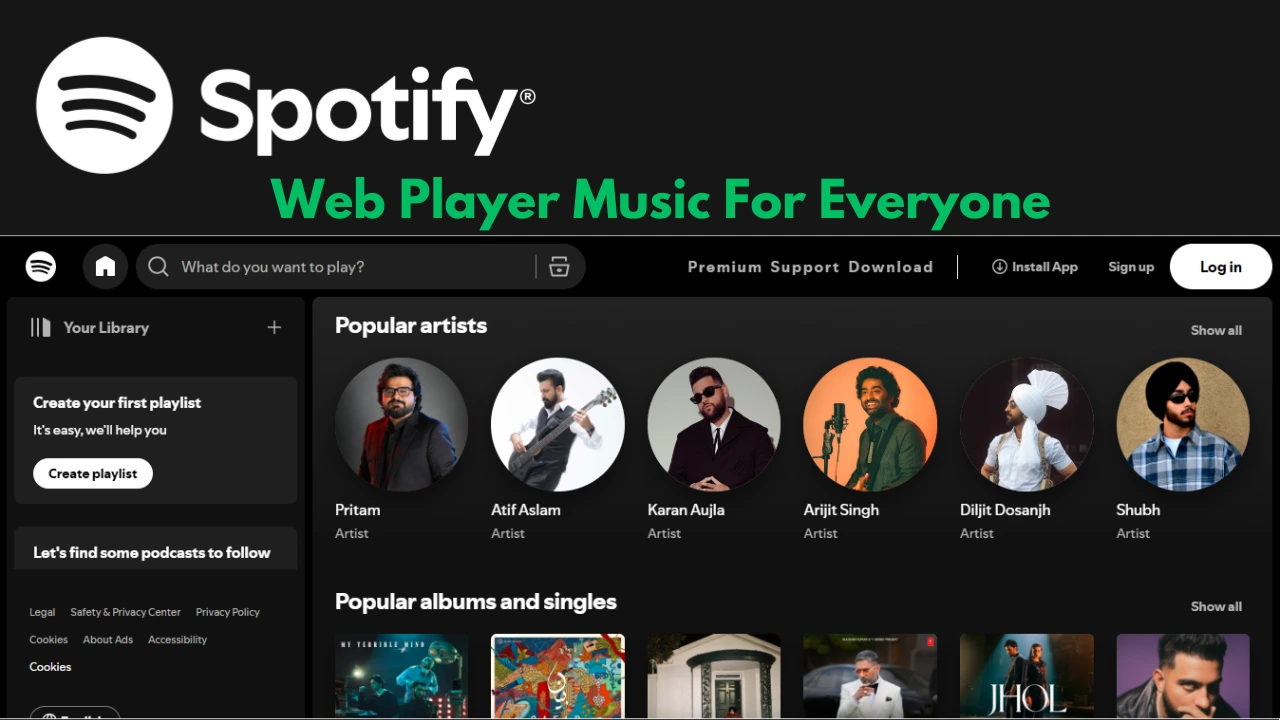
If you want instant access to your playlists and podcasts without installing an app, Spotify – web player: music for everyone is the most direct path to press play. The browser experience has matured into a fast, reliable, and feature-rich way to stream music, podcasts, and even audiobooks. This comprehensive guide goes beyond basics, distilling real, verifiable details about audio quality, device support, casting, lyrics, queue management, and time-saving shortcuts—so you can confidently choose the web player in 2025.
Why the Spotify Web Player Still Matters
The web player is ideal when you’re on a shared computer, a work machine with install restrictions, a Chromebook, or you just prefer a lightweight experience that syncs across devices. It gives you the same account, library, and recommendations you see in the app, with a clean interface and quick load times. For many users, Spotify – web player: music for everyone is the simplest way to start listening anywhere a modern browser runs.
Supported Browsers and Core Requirements
The web player runs on all major, modern browsers. Keep your browser updated and enable playback of protected content to avoid errors. On managed or restricted networks (common in schools and offices), media streaming may be blocked, so testing on a different network can help.
Quick checklist
- Use a current browser: Chrome, Firefox, Edge, Opera, or Safari.
- Allow protected content (DRM): The player uses encrypted media extensions; make sure your browser is allowed to play protected content.
- Try a private/incognito window if you see odd caching or cookie issues.
- If nothing works, the desktop app is your fallback.
Audio Quality on the Web (and How It Compares)
Spotify’s web player streams in AAC. On the free plan, streams typically play at 128 kbps AAC. On Premium, the web player moves up to 256 kbps AAC. This sits just below the highest setting on the desktop app, but it’s a very solid, transparent setting for most listening environments—especially with modern AAC encoders.
Practical takeaways
- Free plan: good for casual listening, study playlists, and podcasts.
- Premium on web: higher fidelity at 256 kbps AAC, great for focused listening at work or on laptops.
- Headphones & speakers: Your gear and room will influence perceived gains more than a step from 256 to 320 kbps.
Getting Around the Interface
The layout is intentionally familiar: Home, Search, and Your Library in the left sidebar; playback controls at the bottom; and contextual panels for Now Playing, Queue, and Lyrics.
Search smarter
- Type an artist, album, track, playlist, show, or audiobook title and use filters to narrow faster.
- Use your recent items to jump back to a playlist or episode you were testing earlier.
Your Library
- Pin playlists, albums, artists, podcasts, and audiobooks you use daily.
- Use folders (on desktop) to keep big libraries tidy—those organizational changes reflect across devices.
Queue, Up Next, and Recently Played
The web player includes a full Play Queue so you can see what’s next, reorder tracks, or clear upcoming items. Recently played is accessible via your account activity; it helps you bounce back to albums or episodes you sampled.
Pro tip: When you’re building a vibe for the next hour, stack songs into the queue, then save that list to a new playlist before you lose the flow.
Lyrics on the Web
For many tracks, Lyrics appear in the right sidebar or the Now Playing area. Availability depends on song rights and region, so you may occasionally see a Now Playing view without a lyrics panel. If you’re not seeing lyrics for a track that used to have them, check another song to confirm the panel loads correctly.
Casting and Multi-Device Listening with Spotify Connect
The web player supports Spotify Connect so you can hand off or control playback on other devices. In a Chrome session on the same network, you’ll generally see Google Cast-capable devices and any logged-in devices associated with your account. If a device doesn’t show up, use the mobile or desktop app to connect first, then return to the browser.
Common use cases
- Start a playlist in your browser → Cast to a TV or smart speaker.
- Control a living-room speaker from your laptop while you work.
- Join a friend’s speaker session at a get-together.
Web-Exclusive Advantage: Audiobook Checkout
One underrated benefit of Spotify – web player: music for everyone is audiobooks: you can purchase or unlock audiobook titles from the web player, then listen on any device signed into your account. Premium plans in many regions include monthly audiobook hours; if you prefer to own individual titles, web checkout is straightforward.
Privacy, Sessions, and Social
If you prefer to separate “algorithm testing” from your everyday listening, know these pointers:
- Private Session is a mobile/desktop feature (not toggled from the web). Start a Private Session in the desktop app if you want a block of listening that won’t feed recommendations, and continue playback in the browser afterward.
- Playlist privacy and profile visibility settings live in the apps and your account page; they carry over to what others can see of your activity.
What You Can’t Do in the Web Player (Yet)
To set accurate expectations:
- No offline downloads in the browser. Downloaded playback is for the desktop and mobile apps.
- Some advanced social features (like toggling Private Session) are app-only.
- Network and DRM quirks can still appear in tightly locked-down environments; enabling protected content usually resolves it.
Power-User Tips for the Web
Install as a lightweight “app”
Chrome and Edge let you install websites as standalone windows (Progressive Web Apps). Doing this for open.spotify.com gives you a clean taskbar icon, app-like windowing, and fewer browser distractions.
Keyboard shortcuts you’ll actually use
- Play/Pause: Space
- Next / Previous: (use media keys on supported keyboards, or the on-screen controls)
- Search: Ctrl/⌘ + K
- Filter in lists: Ctrl/⌘ + F
- Shuffle / Repeat: Ctrl/⌘ + S, Ctrl/⌘ + R
- Go to Library: Quick access from the left sidebar; use the search bar (Ctrl/⌘ + K) to jump anywhere faster
Shortcuts vary a bit by OS and browser focus; if a combo doesn’t work, click inside the player tab and try again.
Build collaborative moments with Jam
Jam lets a group add to a shared queue in real time. Premium is required to host; free users can join a host’s session and add tracks. It’s perfect for dorm rooms, road trips (with Android Auto support increasingly common), and team socials.
Tidy listening, better recommendations
- Use Like sparingly but consistently—your Made-For-You mixes respond quickly.
- Exclude certain playlists or use a Private Session in the desktop app if you don’t want kids’ songs or white noise to skew your algorithm.
- Curate folders for work, study, running, or focus. The web player mirrors the structure you set elsewhere.
Troubleshooting the Web Player
“Enable protected content” or Widevine messages
Turn on playback of protected content in your browser settings. If issues persist, update the browser, clear site storage for open.spotify.com, or use a private window to rule out extensions.
Device not showing in Spotify Connect
On the web, you typically see devices you’re already logged into and Cast devices on Chrome. If a smart speaker won’t appear, open the Spotify app on your phone or desktop, connect there first, then switch control to the browser.
Lyrics missing
Check another track to confirm the panel works; lyrics availability varies by song and region.
Playback blocked on school/work Wi-Fi
Some networks block streaming. Test a mobile hotspot or home network to isolate the issue, or ask IT whether encrypted media/streaming domains are restricted.
How to Master Everyday Workflows (Examples)
1) Quick focus session at your desk
Open the web player, press Ctrl/⌘ + K to search “lofi beats,” queue five tracks, then save the queue to a new playlist. Cast to a nearby smart speaker if you don’t want to wear headphones.
2) Host a low-effort house hang
Start playback from the web player on a living-room speaker via Connect. If you need shared control, launch a Jam from the mobile/desktop app and let guests add via QR.
3) Build a “listen later” stack
While sampling new releases over lunch, use Like on standout tracks and add promising albums to Your Library. Later, from the desktop or phone, download those albums for offline listening before travel.
4) Audiobook on-ramp
Unlock an audiobook from the web player during a break. It shows up in your Library, ready for the commute on your phone—with offline downloads in the mobile app if you need them.
Final Word
Whether you’re analyzing new releases, building collaborative playlists, or sampling audiobooks, Spotify – web player: music for everyone delivers speed and convenience with surprisingly deep features. Use the browser when you want zero-install access and instant casting; switch to the app for offline mode, private sessions, or the very highest desktop audio settings. With a few habits—shortcuts, smart queueing, and tasteful likes—you’ll get more from Spotify every time you press play.
FAQs
1) Does the Spotify Web Player support Safari now?
Yes, the web player supports all major modern browsers, including Safari. Keep Safari updated and ensure protected content is enabled.
2) What audio quality do I get in the browser?
Free accounts typically stream at 128 kbps AAC on the web; Premium accounts go up to 256 kbps AAC in the browser.
3) Can I download music for offline listening from the web player?
No. Offline downloads are available in the desktop and mobile apps. Use the browser for streaming and library management, then download in the apps if you need offline access.
4) Can I cast from the web player to my TV or speaker?
Yes—especially in Chrome. You’ll usually see Google Cast devices on your network and devices you’re already logged into via Spotify Connect.
5) Why don’t lyrics appear for every song in the web player?
Lyrics depend on rights and availability. Many tracks have them, but some won’t in certain regions or at certain times.
6) Can I start a Private Session in the web player?
Private Session is controlled from the mobile or desktop apps. Turn it on there, and your subsequent listening won’t influence recommendations.
7) What can I do on the web player that’s unique?
Audiobook purchasing/unlocking is a web-first flow in many regions. Buy or unlock on the web, then listen across your devices.