Keka HRMS has become one of the most widely used platforms for employee management, payroll, and attendance tracking. For employees, smooth keka attendance login ensures that every hour is accounted for. For HR and admins, it minimizes payroll errors and creates reliable records. In this detailed guide, we’ll walk through login methods, mobile and web usage, attendance capture policies, kiosk setup, and common troubleshooting tips.
Why Keka Attendance Login Matters
Accurate attendance records directly affect payroll, compliance, productivity tracking, and leave management. By using the Keka attendance login system, both employees and employers benefit from:
- Real-time logging of working hours
- Integration with leave and payroll systems
- Remote and mobile flexibility for hybrid teams
- Easy regularization of missed punches or errors
- Transparent approval workflows for managers
Login Methods Available in Keka
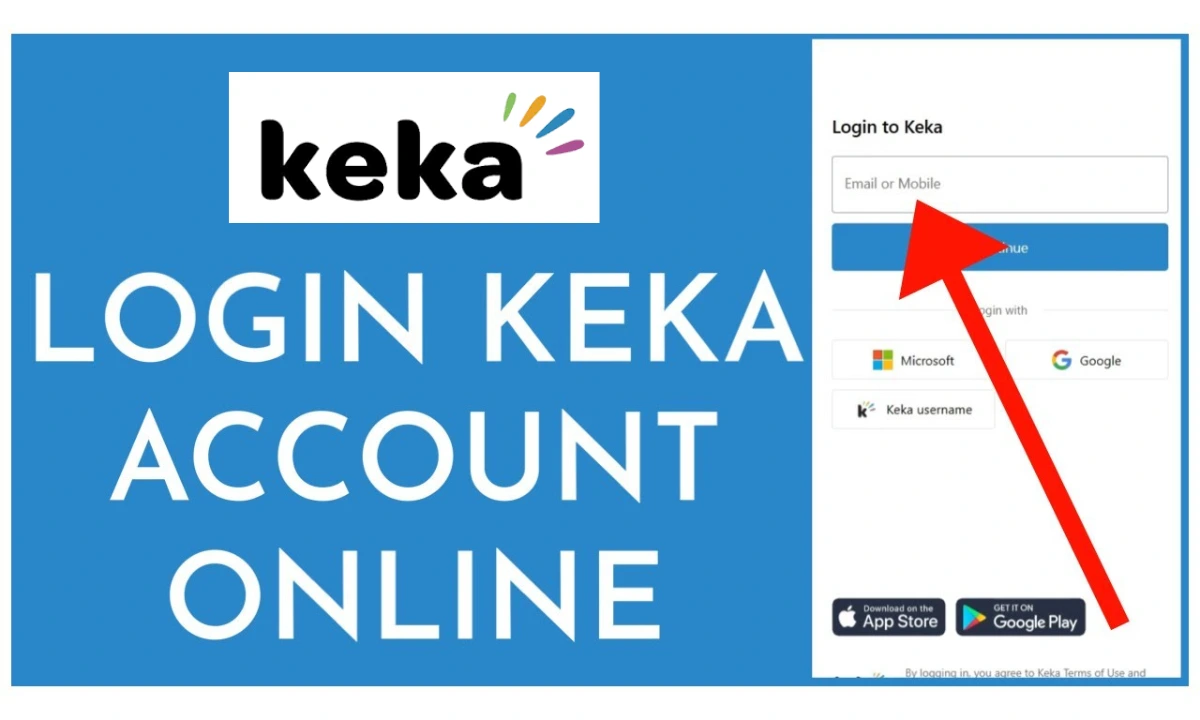
Keka offers multiple ways for employees to log in, depending on how the organization configures the system. The most common methods include:
1. Microsoft SSO
Employees using corporate Microsoft accounts can sign in with a single click. This method is popular with enterprises already on Microsoft 365.
2. Google Workspace SSO
Organizations using Google Workspace allow employees to log in using their work Gmail credentials. It’s fast and secure with no need for separate passwords.
3. Keka Password
Employees can log in with their registered email ID and a password created on Keka. This method also includes a captcha verification, and many companies enable two-factor authentication for added security.
4. Mobile OTP
Employees can enter their registered mobile number, receive an OTP, and complete the login. This method is useful when password resets or SSO issues occur.
How to Perform Keka Attendance Login on Web
- Open your company’s specific Keka portal (usually a subdomain like
companyname.keka.com). - Select the login method enabled by your organization (Microsoft, Google, Password, or OTP).
- Complete the verification process.
- Once inside, navigate to the Attendance section to clock in/out, view logs, or apply for corrections.
Using the Keka Mobile App for Attendance
The Keka Mobile App is designed for on-the-go employees. After completing your keka attendance login on the app, you can:
- Clock In/Out with a single tap
- Apply for Work From Home (WFH), On Duty (OD), or Partial Day
- Raise attendance regularization requests for missed or incorrect punches
- Check logs, comp-off balances, and shift timings
- Track request history and approval status
For hybrid and remote teams, the mobile app provides flexibility to ensure attendance is always updated, regardless of location.
Attendance Capture Methods Configured by Admins
Keka allows admins to create attendance capture schemes that define how time is logged. Options include:
- Web Clock-In: Employees log attendance through the browser.
- Mobile App Clock-In: GPS or network-based attendance capture from the mobile app.
- Keka Kiosk: A tablet or system placed at the office reception or gate where employees punch in/out.
- Biometric Device Integration: Keka can be linked to biometric devices for in-office tracking.
- Remote/Hybrid Attendance: Configurable policies for WFH and on-duty requests.
Work From Home & Remote Requests
For employees working remotely, the keka attendance login process also includes WFH requests. HR can configure policies to:
- Allow employees to apply for WFH directly
- Route approvals to reporting managers
- Track duration and frequency of remote work
This eliminates the need for manual spreadsheets and keeps attendance records consistent.
Regularization Requests
Sometimes employees forget to clock in, or technical issues cause mismatched records. Keka provides an option to regularize attendance, where employees can request corrections, justify their absence, or provide supporting notes. Managers then approve or reject based on company policy.
Keka Kiosk for Office Attendance
In workplaces where biometric devices are not preferred, Keka offers a Kiosk Mode:
- A tablet or system is set up at the office entrance.
- Employees log in with their PIN, QR code, or employee ID.
- Attendance data syncs directly with the HRMS in real time.
This option is popular for startups, co-working spaces, and offices that want flexibility without heavy hardware.
Security Features in Keka Attendance Login
Keka ensures data safety with multiple layers:
- Captcha verification on password and OTP login
- Two-factor authentication for enhanced account security
- Role-based access control for HR and managers
- Audit logs to track login activity and changes
Troubleshooting Common Login Issues
If you’re facing problems during keka attendance login, here are common solutions:
- Incorrect password: Reset it via “Forgot Password” on the login page.
- OTP not received: Check mobile network or email spam folder.
- Blocked account: Contact HR or IT for reactivation.
- SSO failure: Use the alternate login method enabled by your admin.
- Mobile app error: Clear app cache or reinstall the application.
Best Practices for Smooth Attendance Logging
- Always bookmark your company’s official Keka subdomain.
- Log in before starting work to avoid missed punches.
- Use the mobile app when working remotely or traveling.
- Submit regularization requests promptly if you miss a punch.
- Stay updated with company-specific policies set by HR.
FAQ on Keka Attendance Login
1. Can I use Keka attendance login without my company’s subdomain?
No, every organization has its own dedicated Keka portal. You must use the URL provided by your employer.
2. Does Keka allow GPS tracking for attendance?
Yes, if your company enables GPS-based clock-ins via the mobile app, your location may be recorded when you log attendance.
3. How do I reset my Keka password?
Use the “Forgot Password” option on the login page, enter your registered email, and follow the reset instructions.
4. Can I raise multiple attendance regularization requests in one month?
Yes, but this depends on your company’s policy. Some organizations set limits on the number of requests.
5. What happens if I miss both clock-in and clock-out?
You’ll need to submit a regularization request with details. Your manager or HR will review and approve it.
6. Is Keka attendance login mandatory on both web and mobile?
No, you can use either. Most companies allow flexibility between web login, mobile app, or biometric/Kiosk systems.
7. Can managers log in and approve attendance requests through the mobile app?
Yes, reporting managers can approve leave, WFH, OD, and regularization requests directly from their Keka mobile dashboard.