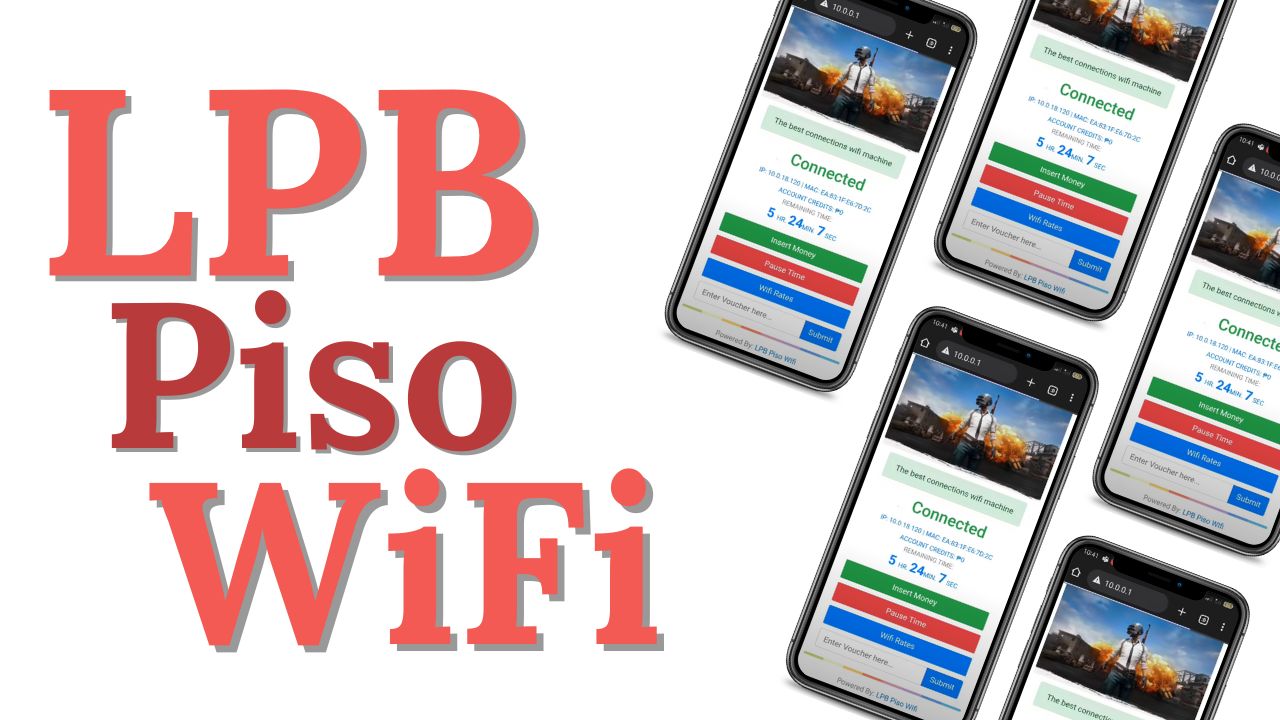
If you’ve ever wished you could stop the timer on your paid WiFi session without wasting minutes, the lpb piso wifi pause time feature is exactly what you need. On LPB-powered vending hotspots, the captive portal at 10.0.0.1 lets customers pause and resume their session so you only spend for the minutes you actually use. This guide explains how pause time works, the exact steps for users, the settings vendors can configure, and practical fixes when things don’t behave as expected.
What “Pause Time” Really Does
At a high level, lpb piso wifi pause time temporarily freezes your active session:
- Your remaining minutes are preserved.
- Internet traffic from your device is blocked while paused.
- When you resume, the same session continues and the timer starts again.
This is different from simply disconnecting WiFi. If you just turn off WiFi or move out of range, your remaining minutes may still count down (depending on how the vendo is configured). Using the portal’s Pause Time button is the reliable way to freeze the session.
Good to know
- Pausing doesn’t refund coins or extend the original voucher validity window.
- Background tasks (downloads, calls, streaming) stop while paused.
- If your voucher has an expiration buffer (set by the owner), the session might auto-expire even if left paused for too long. Policies vary by setup; see the admin-focused section below.
Quick Start: How to Use LPB Piso WiFi Pause Time (For Customers)
Follow these steps whenever you need to conserve minutes on your session:
- Connect to the LPB Piso WiFi network.
Make sure mobile data is off to avoid your phone switching networks. - Open a browser and visit 10.0.0.1.
You should see the LPB Piso WiFi portal for your hotspot. - Start your session if you haven’t already (insert coin, enter voucher, or follow the local purchase method shown on-screen).
- Tap or click “Pause Time.”
The portal will confirm the session is paused. Your minutes stop counting down. - Tap “Resume Time” when you’re ready to continue browsing.
Your remaining minutes will start counting down again.
Tips for smooth pausing
- Keep the portal tab open; it makes resuming faster.
- If the portal doesn’t appear, manually type 10.0.0.1 in the browser bar (no “www”).
- If you can’t see the Pause Time button, see the troubleshooting section—owners can disable it or limit how often it can be used.
Where to Find the Pause Button When It’s “Missing”
Seeing the captive portal but no Pause Time option? Try these:
- Refresh the portal page (or pull down to refresh on mobile).
- Revisit 10.0.0.1 in a fresh tab instead of using a cached one.
- Disable mobile data, reconnect to the LPB Piso WiFi SSID, and try again.
- Clear the browser cache or use a private/incognito tab to avoid stale portal code.
- Ask the vendo owner—the pause feature can be turned off or limited by policy (number of pauses, max pause duration, voucher types allowed).
Admin Corner: How Owners Can Enable & Tune Pause Time
If you run an LPB Piso WiFi vendo, you can decide whether pausing is allowed and how it behaves. Typical controls include:
- Enable/Disable Pause Time at the portal level.
- Pause Limit (per session) — how many pauses a user may do.
- Max Pause Duration — how long a single pause can last.
- Session Expiration Rules — grace windows that end a session even if paused for too long.
- Voucher Type Controls — e.g., allow pausing for time-based vouchers, restrict for data-based offers.
High-level setup flow for owners
- Connect a laptop or phone to your vendo’s WiFi (or management LAN, if applicable).
- Open the admin portal (commonly at 10.0.0.1/admin) and sign in with your admin credentials.
- Open the system/portal/session settings.
- Toggle “Pause Time” on and configure:
- Pause Limit per session (e.g., 5–10 pauses)
- Max pause duration (e.g., up to 1 hour per pause)
- Auto-expire behavior (e.g., expire if paused over a certain number of hours)
- Save and apply changes; reboot if your firmware requires it.
- Test as a user: start a voucher, pause, and resume to confirm buttons and limits behave as expected.
Practical policy example: Allow up to 10 pauses for a 1–2 hour voucher and set an expiration buffer (e.g., session time + 1 hour). That preserves user flexibility while discouraging indefinite “parking” of minutes.
Designing Fair Pause-Time Policies (Owner Playbook)
A well-tuned lpb piso wifi pause time policy improves customer satisfaction and keeps turnover healthy.
- Match pause flexibility to voucher length.
For short 30–60 minute vouchers, 5–10 pauses is generous. For 24-hour vouchers, fewer/longer pauses might be better. - Use a sensible max pause duration.
30–60 minutes per pause is often enough for errands and calls, without letting sessions sit idle all day. - Set an expiration buffer.
A buffer (e.g., session time + 1–2 hours) avoids long-abandoned paused sessions clogging your active list. - Keep the UI consistent.
If you rebrand or update your portal, keep the Pause Time and Resume buttons in familiar locations and wording. - Communicate the policy.
Post a small notice on the vendo or splash screen:
“Pause Time available: up to 10 pauses, 1 hour max each; session may auto-expire if left paused too long.”
Clear expectations = fewer disputes. - Monitor misuse patterns.
If one device repeatedly pauses for excessive periods, consider tightening max pause or adding rate limits.
Troubleshooting: Common Problems & Reliable Fixes
Portal won’t open (10.0.0.1 doesn’t load).
- Confirm you’re connected to the LPB Piso WiFi SSID (not mobile data or another WiFi).
- Type 10.0.0.1 exactly; avoid adding “https://” if your portal isn’t using SSL.
- Clear the browser cache or use an incognito window.
Pause button not visible.
- Owner may have disabled pausing for your voucher type or system-wide.
- You might have exhausted your pause limit—resume, then you’ll see it again if limits allow.
- Refresh the portal or re-enter it via 10.0.0.1 to reload the correct UI.
Session expired while paused.
- Many setups include an auto-expire rule if a session is left paused beyond a threshold.
- Purchase a new voucher and ask the owner about the current policy to avoid repeats.
Resume doesn’t restore internet.
- Toggle WiFi off and on, then re-open 10.0.0.1 and hit Resume again.
- Make sure no VPN or private DNS is blocking the captive portal.
Switched devices during pause—can’t resume.
- Most systems tie a session to the original device MAC address. Resume on the same device you used to start the session.
Smarter Customer Usage: Save More with Pause Time
- Batch your browsing. Queue your downloads, then pause when you’re just reading offline or stepping away.
- Turn off auto-updates. Pausing is most effective when your device isn’t stealthily consuming data in the background.
- Bookmark the portal. Add 10.0.0.1 to your home screen for one-tap pausing and resuming.
- Mind the policy. If your vendo has a pause limit or max pause setting, plan your breaks accordingly.
Choosing Between Time- and Data-Based Vouchers (For Owners)
The lpb piso wifi pause time feature shines with time-based vouchers—customers love the flexibility. If you offer data-based vouchers:
- Pausing still helps with fairness (no traffic while paused).
- Consider separate policies: e.g., fewer pauses but longer max pause, since the limiting factor is MB, not minutes.
- Communicate the difference clearly on the splash screen so customers choose the best option for their use case.
Security & Fair Use Considerations
- Admin credentials: Use a strong password for your admin portal; avoid default creds and rotate them periodically.
- Abuse prevention: Rate-limit pausing if users park sessions for hours in peak times.
- Privacy: Avoid showing device names or identifying info on public status screens.
- Firmware updates: Keep your portal and firmware current so pause logic and session accounting remain accurate.
Real-World Scenarios
- Students: Pause between classes to save minutes for evening study.
- Small shops/cafés: Allow pausing so customers can step out without feeling rushed.
- Transport hubs: Short, frequent pauses pair well with 30–60 minute vouchers for commuters.
Checklist: Before You Rely on Pause Time
- You see the Pause Time button on the portal.
- You know your vendo’s pause limit and max pause duration.
- You’re aware of any auto-expire rule if paused too long.
- You’ve bookmarked 10.0.0.1 for quick access.
- You’ve tested Resume at least once during your session.
FAQ: LPB Piso WiFi Pause Time
Can I use pause time if I paid with a voucher code instead of coins?
Yes—lpb piso wifi pause time works with whatever starts a session (coins, voucher, e-load), unless the owner disables pausing for certain voucher types.
How many times can I pause a single session?
It depends on the vendo’s policy. Many configurations allow multiple pauses per session (e.g., up to 10), but owners can set lower or higher limits.
Is there a maximum length for one pause?
Usually, yes. Owners often cap a single pause window (for example, up to an hour) to keep sessions from being parked all day.
Why did my minutes disappear even though I paused?
If you left the session paused beyond the system’s auto-expire window, it may have ended. Buy a new voucher and check the posted policy to avoid this next time.
Can I pause on one phone and resume on another?
Typically no. Sessions are tied to the device that started them for fairness and anti-abuse reasons.
Do I need to keep the portal open for pause time to work?
Pausing stays in effect even if you close the tab, but keeping the portal bookmarked makes resuming faster and more reliable.
My portal shows 10.0.0.1 but the page won’t load—what now?
Reconnect to the LPB SSID, disable mobile data, and try an incognito browser tab. If the pause feature still doesn’t appear, it may be disabled by the owner.